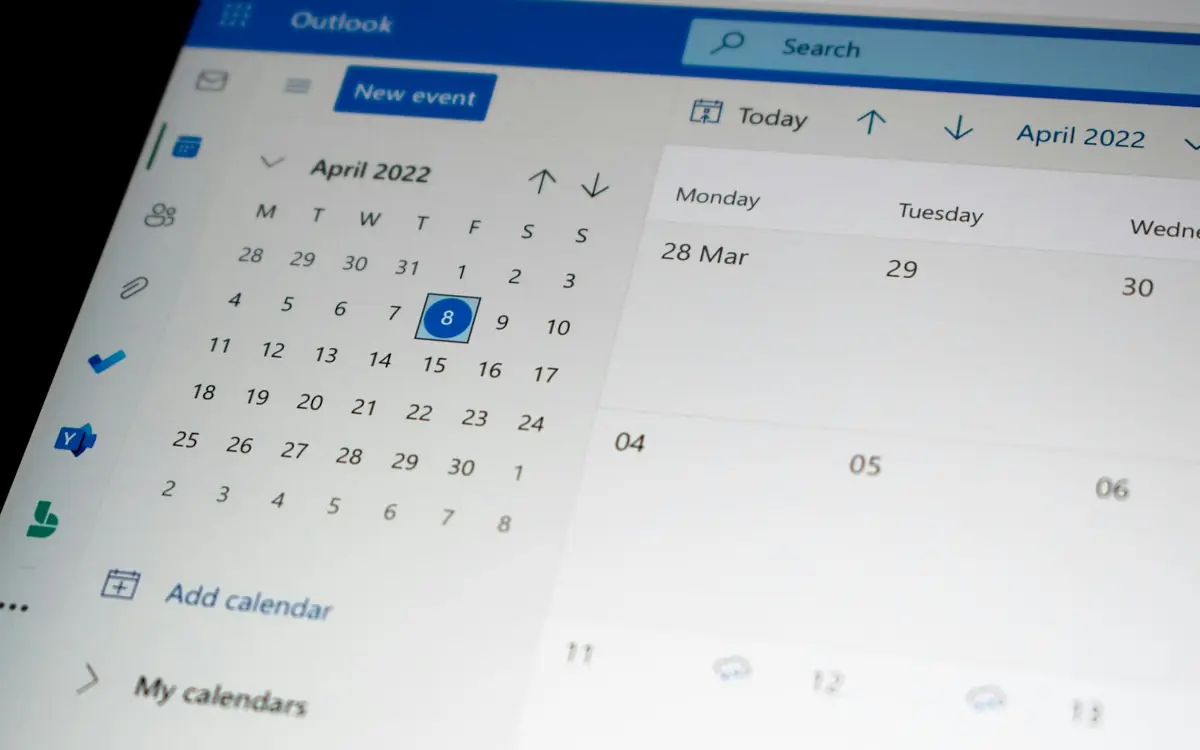
A diary for a practice with several doctors has to book four things together: who is carrying it out, in which room, for how long and what type of appointment it is. If even one of the four is missing, the clash is discovered when the patient is already in the waiting room. In Fibonacci the diary keeps the practitioner, the room (if the practice has more than one), the type of visit with its duration, and says straight away whether there is an overlap. Whoever sees the diary is not necessarily whoever sees the records: the front desk sees appointments and patients without opening the clinical part.
If you take on an associate, or rent a room to a colleague, the diary has to stop being a shared table that is written on by hand. Below you will find how to organise it, with what the Fibonacci diary does today and the functions switched off by default or coming soon, marked as such.
What a practice diary has to book
Four elements, and they go together.
| Element | Why it is needed | In Fibonacci |
|---|---|---|
| Person (the practitioner) | A doctor cannot be in two places | «Practitioner» field of the appointment, with a warning if it overlaps |
| Room | Two doctors cannot use the same room | «Stanza» field, if the function is active for the practice |
| Duration | The type of visit says how much it takes up | Types of visit with a preset duration, and editable duration |
| Equipment | There is only one laser | Register of instruments, for maintenance (see below) |
The fourth element has a story of its own, and we will tell it further on: the Fibonacci diary books the room, not the equipment.
Types of appointment and durations
When you click on a free slot, the new appointment window opens. The fields are the patient (with the option of creating one on the spot), the practitioner, the reason or type of visit, the duration, the status, the notes for you and the patient's notes. The type of visit comes from a catalogue that the practice configures: the entries you find in the menu are yours, not a fixed list.
The default duration is thirty minutes, with shortcuts to fifteen, thirty, forty-five, sixty and ninety. If in Impostazioni, Agenda, Tipi visita you assign each type a duration and a colour, creating an appointment becomes shorter: you choose «prima visita», and the duration is already there.
In a practice with several doctors this has a concrete advantage. A first visit lasts as long as the practice decides, regardless of who books it, and the diary does not depend on the memory of the secretary who was there that day. Which durations are right for your treatments is for you to decide: it is not something an article can give you.
Availability, breaks and visible days
There are three different things, and it is worth not confusing them.
The view. In Impostazioni, Agenda, Giornate visibili you choose whether the week shows five or seven days. It is a display preference.
The breaks. For lunch or a meeting you use Blocca fascia, repeated as well: appointments cannot be created on blocked slots.
The availability. The days and slots in which you see patients are set in the settings, and they are per doctor: in a practice with several doctors each one enters their own. It is this that feeds online booking: without availability, the patient does not see any free slot.
Fibonacci does not have a calendar of public holidays or leave as functions in their own right. If your practice closes for Ferragosto, the way to do it is to block the slots.
The rooms
If the practice has more than one room, the diary can record which one each appointment takes place in. The function is off by default: if in Impostazioni, Dati dello studio there is no Stanze section, it is not yet active in your installation, and you ask support.
- In
Dati dello studio,Stanzesection, pressNuova stanza, write the name («Ambulatorio 1», «Sala laser») and create the room. - With
Rinominayou change the name. WithDisattivathe room can no longer be chosen for new appointments, while those already booked keep it.Riattivaputs it back into use. - In the appointment the
Stanzafield appears, withNessuna stanzaif it is not needed. The name appears on the block in the diary, and theFiltra per stanzafilter shows one room only or all of them.
Until you add a room, the diary stays as it was. When two appointments want the same room at the same time, before saving the warning appears with whoever is occupying it. If you want to keep them together on purpose (two patients sitting together, a nurse doing a quick check) you use Salva comunque, and when moving Sposta comunque.
Shared equipment
A laser, a radiofrequency device or an intense pulsed light are shared: two doctors cannot use them at the same moment. In Fibonacci there is no function that books the equipment as a diary resource. There is the register of instruments, which serves another purpose: keeping track of every device (what it is, when it came in, last maintenance, next expiry). It warns you when an expiry is approaching or has passed, and it does not block anything: using a device with expired maintenance remains your decision.
If the equipment is in one room only, there is a practical way: booking the room (for example «Sala laser»). Two appointments in the same room, at the same time, receive the overlap warning, and the warning protects the equipment as much as the room. It is not a block and was not created for this, and if the equipment moves between rooms it will not save you.
The multi-practitioner view
For several doctors the diary has a column view: one for each selected practitioner, with name and speciality at the top, a colour for each and the shared row of hours. At the top right the selector has the filters Tutti, Solo io and Multi-operatore. Solo io reduces the view to your own calendar, useful for personal planning. The preference is remembered for each user.
The overlap check is per practitioner: if you book someone already engaged, the window shows a warning with the details of the appointment in conflict and three choices: Modifica orario, Assegna ad altro operatore, Salva comunque. The last is for particular cases (a companion going in with the patient) and is generally not advised.
For a practice with several sites there is a doctor of one site role, who sees all the patients but in the diary only the appointments of their site.
Moves, cancellations and statuses
Moves are direct. You drag an appointment onto another slot and the date and time change, keeping duration and details. You drag the bottom edge and the duration changes. Double click opens the panel with all the fields, right click the quick menu: Modifica, Annulla, Duplica, Sposta, Marca check-in. On a tablet dragging requires a long press, and alternatively there is the side panel.
When you move an appointment already confirmed, the patient receives a notification with the new time: in a practice with several people touching the diary, it is worth deciding who moves appointments, because every move reaches a real person. If the overlap you have just created by mistake had already been communicated to patients, the system also warns them of the new time or the change of practitioner.
Every appointment has a status, with colour and icon: scheduled, confirmed, check-in (arrived at the practice), in progress, completed, no-show, cancelled. The status is changed from the side panel, and every change is recorded with date and time in the access log. In Impostazioni, Agenda, Auto no-show you can set after how long an appointment that has not started marks itself as a no-show; it is off by default.
Cancellations by the patient come in two ways. The reminder email the day before carries a link to cancel without telephoning, and the same applies to the booking confirmation; when your practice uses it, the diary frees itself. We talk about reminders in a dedicated article. There is no waiting list: a patient asking «if anything frees up» remains a note or a task for the front desk.
Exporting and synchronising
The Esporta button gives two ways: a PDF of the week, useful for archiving it or handing it to the owner, and an iCal file with the appointments for the period. Automatic synchronisation with Google Calendar and Outlook is coming soon. One warning applies to any external calendar anyway: in synchronised appointments only a generic title and the time appear, never the patient's data.
Visibility by role: who sees the diary, who sees the record
This is the point that weighs most when a second person joins the practice. The administrator invites an associate from Impostazioni, Membri studio section, and chooses a role. The drop-down writes next to each entry what the role sees. The invited associate always has two-factor authentication, which is mandatory.
| Role | What they see |
|---|---|
| Practice administrator, doctor who sees the whole practice | All the practice's patients |
| Doctor of one site | All the patients, in the diary only the appointments of their site |
| Head nurse, nursing staff | All the practice's patients |
| Front desk | Patients and diary, without opening clinical records |
| Co-operative front desk | Patients and bookings, without clinical records |
| Doctor, own patients only | Only the patients they look after, not those of the owner or colleagues |
If you have given the wrong role, Cambia ruolo fixes it on the person's row: it applies from the next login and remains in the access log. When a person leaves, Rimuovi accesso removes access immediately, including sessions already open; the clinical data remain attributed to whoever wrote them. The full rules are on the page about users and permissions.
Why does the front desk see the diary and not the record? There are two reasons, one of principle and one practical. The GDPR, in Article 5 (opens in a new tab), requires that data be limited to what is necessary for the purpose: to fix an appointment you do not need to read a record. And the Garante, in a measure of 22 February 2024 (opens in a new tab), examined repeated accesses to a company's health dossier by authorised staff who were not involved in the patients' care; the complaint referred, among others, to the principles of Article 5 (letters a, c and f) and the security of Article 32. It was a healthcare company and not a practice, and a dossier is not a diary: we do not cite it as a rule for you. We cite it because it shows that «authorised» and «necessary» are two different words.
Booking from the practice website
With several doctors, online booking lines up two things already seen: each person's availability and the shared diary. In Impostazioni, under Prenotazione dal tuo sito, there is a box to paste into the practice website, so that whoever visits it books without leaving it. The function is off by default: if the entry is not there, it is not active in your installation. You enter, one per line, up to five website addresses on which the box can open; without even one, it does not open anywhere. Requests arrive in the diary like those from the practice's public page and remain to be confirmed.
Two pieces of advice are worth it in a busy practice. Before switching on booking, look at your availability with the patient's eyes: the slots you see are the ones that will fill your day. And leave out a few slots, for urgent cases and for the check-ups you decide on.
How to set up a practice that is growing: a checklist
- You have decided which roles are needed and you have not given the administrator role to anyone who should not manage access
- Every doctor has entered their availability
- The types of visit have duration and colour
- The rooms are created (if the function is active) and every appointment has one
- Recurring breaks are blocked
- The register of instruments is filled in, with serial number and expiry dates
- The front desk has the front desk role, and not the doctor one
- The day-before reminder is active, and patients have a recorded choice of channel
- At the end of the day appointments are closed with the right status
Online booking, and the front desk counter
If online booking is on, the patient chooses a slot from the free ones and books; the confirmation arrives by email (by SMS if the channel is configured) and the appointment appears in the diary like the others. Requests from the website arrive to be confirmed, and at the top of the activities page, in the «Don't forget» strip, a request still to be confirmed reappears. It is covered in the article on online booking. The front desk counter, for those who welcome patients in the waiting room, is coming soon.