Request the test, attach the report to the request, and you decide what the patient sees.
From the record, in Tests, click New test and choose the type. When the report arrives, attach it with Upload report: anyone who opens the record sees what you requested and what came back. In Documents, with Upload document you keep the rest, and with Send to patient you send it by email.
- Request and report together
- Documents in the record
- To the patient, with one click
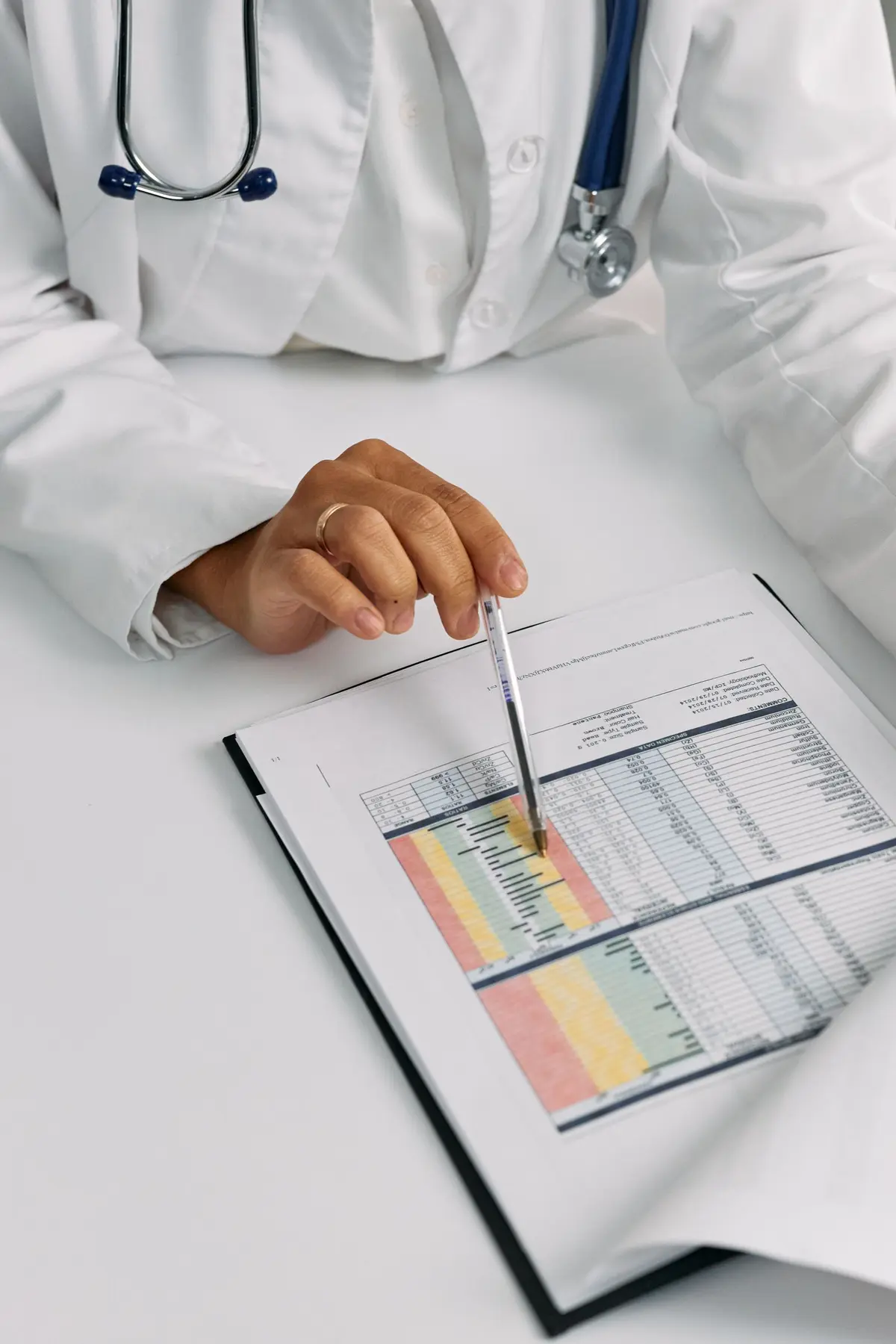
Report attached to the request
How it works
It takes a few steps, in the same order you work in the practice.
Step 1 of 5
Open Tests
In the patient's record, open Tests, under Treatments and tests. Click New test.
Lab tests
What it does
Here is what it does, in three points.
Request and report together
The test has a coded name, the same for anyone who reads it. The row shows “uploaded” when the report is attached, and you can download it with Download report.
Documents in the record
Identity documents, external reports, forms signed on paper and scanned. Upload document, and give the file a name that makes sense.
To the patient, with one click
The eye makes the document visible in the patient area. Send to patient sends it by email to the address in the patient record, and a trace remains in the access log.
- Who it is for
- For anyone who requests tests before a treatment and wants reports and documents in the record, not in email.
- Specific features
- The report stays attached to the request that originated it. Every document has its eye: until you turn it on, the patient does not see it in her area.
- What it costs
- Included in every plan, from 129 € a month for one doctor, VAT excluded. The first 15 days are free.
Without and with
Here is what changes in the practice's day.
| Without Fibonacci | With Fibonacci |
|---|---|
| The report arrives by email and ends up in a folder on the computer. | You attach it to the test request: whoever opens the folder sees request and response. |
| You write the test name however it comes out. | The Test type comes from a list, with the same name for everyone. |
| Forms signed on paper stay in a binder. | You scan them and upload them to Documents. |
| To show a report to the patient, you forward it from any mailbox. | Turn on the eye, or press Send to patient. |
| No trace of the send remains. | The send remains in the access log. |
Good to know
Before you use it, there are four things worth knowing.
Email cannot be recalled
Send to patient opens a window with the file name, the address, and the warning that email is not a secure channel. The address is the one in the patient record: you do not type it by hand.
If the address is missing
If the patient does not have an address in the patient record, Fibonacci tells you and sends you to add it in the profile. With the online area active, the eye is usually better.
Signed consents are already visible
For signed consents, visibility is standard. Other documents stay hidden until you decide otherwise: a report without explanation can scare more than inform.
Coming soon: reading reports from files
Import from PDF, HL7, or FHIR, with values in a table and comparison with previous reports, is written and not yet switched on. Today the report is attached to the request as a file.
Related features
It works together with these other parts of Fibonacci.
Questions
Answers to the questions that come up first.
How do I record a requested test?
How do you attach the report to a request?
Does Fibonacci read report values?
What documents can I upload?
What does the eye next to the document do?
How do I send a document to the patient by email?
Can I choose another address?
Who sees that I sent the document?
Can I change the name of a document?
Chart and clinical
Try it in your practice for 15 days, no credit card.
Within one business day we'll call you: we set up the practice together and import your data.
Continue: Prescriptions →